Foldable Bluetooth Wireless Keyboard With Numeric Keypad: A Practical Upgrade for Phone, Tablet, and Laptop Work
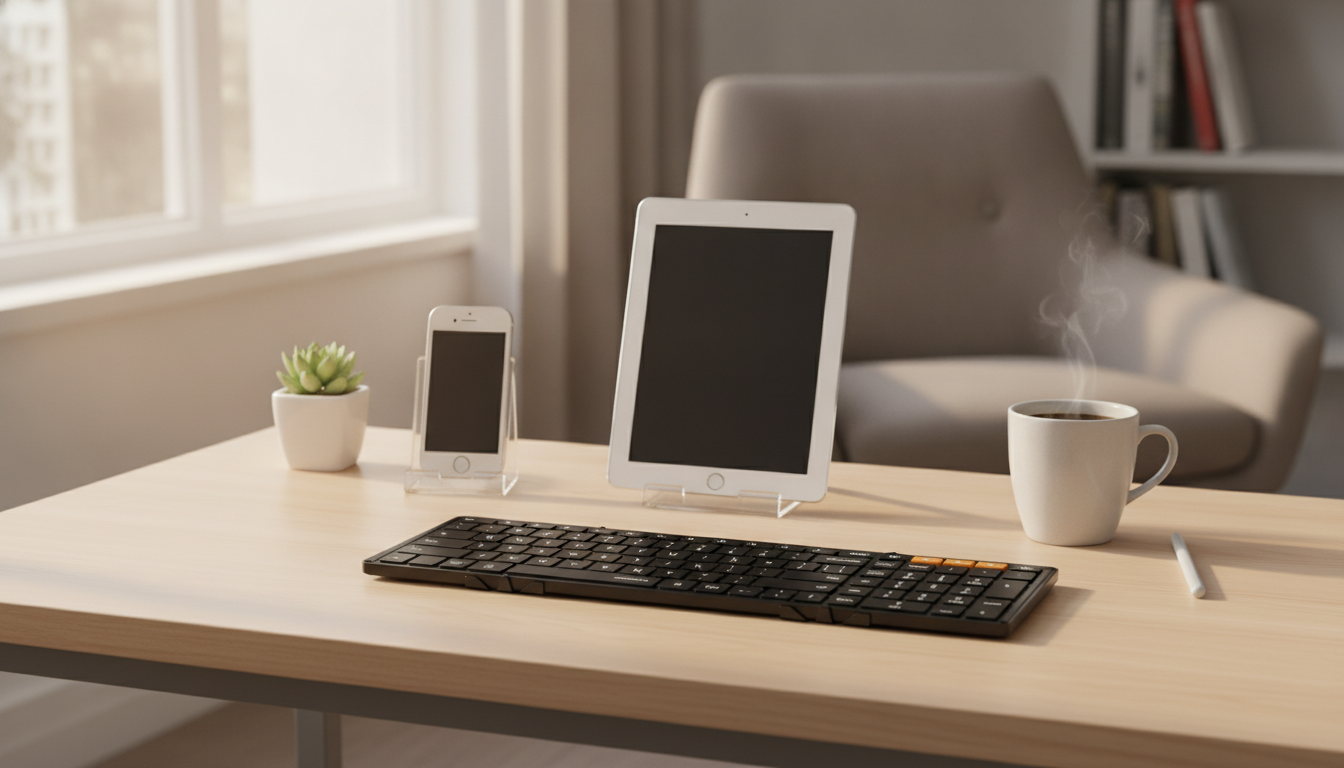
A foldable Bluetooth keyboard with a numeric keypad can turn a phone or tablet into a more practical work setup—especially for emails, notes, spreadsheets, and on-the-go admin tasks. The right model should feel stable when opened, pair quickly, travel easily, and hold a charge reliably. Below is what matters most (layout, pairing, portability, and power) and how a foldable, full-width design fits into everyday use across iPhone, iPad, and computers.
Who This Keyboard Fits Best
- Commuters and travelers who need a compact keyboard that packs easily and sets up fast
- iPad and iPhone users who type long messages, documents, or notes and want a more laptop-like feel
- Spreadsheet, invoicing, budgeting, and data-entry tasks where a numeric keypad saves time
- Hot-desk and hybrid work setups where switching between devices is common
Key Benefits of a Foldable Keyboard With a Numeric Keypad
- Folds down to reduce bag space while still providing a full typing surface when opened
- Numeric keypad supports faster number entry than top-row keys for finance and data work
- Bluetooth connectivity reduces cable clutter and works well for couch, conference room, and travel use
- Helps reduce on-screen typing fatigue on phones and tablets during longer sessions
- Works as a flexible add-on for desktops and laptops when a compact travel keyboard is preferred
For people who do any amount of number-heavy work away from a desk, the numeric keypad can be the difference between “good enough” and genuinely efficient. It also makes it easier to keep your workflow consistent across devices—especially when jumping between a phone for quick replies and a laptop for longer edits.
Compatibility and Pairing Across iPhone, iPad, and Computers
Most modern devices support Bluetooth keyboards, but the smoothest experience comes from a quick initial setup and a few small habits that prevent lag later.
Basic Bluetooth pairing steps
- Turn on the keyboard.
- Open Bluetooth settings on the device you want to use (iPhone/iPad, Mac, Windows PC, or a Bluetooth-enabled tablet).
- Select the keyboard name when it appears.
- Confirm a pairing code if prompted (some devices will ask you to type a code and press Enter).
What to verify before buying or setting up
- Bluetooth support: Make sure the target device has Bluetooth enabled and working.
- Language/layout preference: Check that the keyboard layout matches your comfort (especially if you frequently use punctuation or shortcuts).
- Function key behavior: iPadOS, macOS, and Windows can interpret function keys differently, so it’s smart to test volume/brightness/media keys after pairing.
Tips for smoother switching and fewer dropouts
- If input feels delayed, “forget” the keyboard in Bluetooth settings and re-pair it.
- Stay within typical Bluetooth range and avoid placing the device behind metal objects that can block signal.
- Keep the keyboard charged—low battery can increase disconnects or inconsistent input.
Helpful official references: Apple Support on pairing Bluetooth accessories and Microsoft Support for Windows Bluetooth troubleshooting. For deeper technical background, the Bluetooth SIG specification overview is a reliable reference.
Fold, Feel, and Daily Use: What to Look For
A foldable design is all about convenience, but comfort still matters. A travel keyboard should open quickly, sit flat, and keep your hands in a natural position.
- Hinge stability: A good hinge opens flat and stays steady on a desk, café table, or tray table. If it rocks, fatigue builds fast.
- Key spacing and travel: Roomy spacing supports longer sessions (emails, documents, notes) without the cramped feel of ultra-compact layouts.
- Numeric keypad usability: Key size and spacing matter for speed; a tight keypad can slow data entry even if it’s technically present.
- Surface requirements: Foldable keyboards perform best on firm surfaces. Lap typing can work for short bursts, but a soft surface may flex the hinge and reduce accuracy.
- Noise level: Quieter keys are easier for cafés, libraries, shared offices, and meetings.
Battery, Charging, and Travel Readiness
Quick Spec-and-Use Checklist
At-a-Glance Checklist
| What to Check |
Why It Matters |
Practical Tip |
| Bluetooth pairing stability |
Prevents lag or dropped input |
Pair once per device and keep the keyboard charged |
| Fold/hinge stability |
Improves typing comfort on flat surfaces |
Open fully and place on a firm desk/tray |
| Numeric keypad layout |
Speeds up spreadsheets and number entry |
Test with a calculator or sheet app to confirm comfort |
| Device compatibility |
Ensures iOS/iPadOS/Windows/macOS usability |
Verify Bluetooth support and expected key mappings |
| Charging and battery routine |
Reduces interruptions while traveling |
Pack the correct cable and top up before long sessions |
Featured Product
Product: Foldable Bluetooth Wireless Keyboard with Numeric Keypad for iPhone, iPad & Computer
Other in-stock picks you may want to add to your order
Care, Cleaning, and Longevity
FAQ
Will a Bluetooth keyboard work with iPhone and iPad without extra apps?
Yes. iOS and iPadOS support Bluetooth keyboards natively through Settings > Bluetooth, and typing works in most text fields immediately after pairing. If a pairing code appears, follow the on-screen prompt to confirm the connection.
Does the numeric keypad work on iPad and iPhone for spreadsheets and calculators?
In most cases, yes—the number keys typically input normally. Exact behavior can vary by app, but spreadsheet and calculator apps commonly accept numeric keypad input without extra setup.
How can connection drops or typing lag be reduced?
Keep the keyboard charged, stay within normal Bluetooth range, and remove old pairings if you’ve connected multiple keyboards before. If interference is likely, toggling Bluetooth off/on or re-pairing the keyboard can restore stable performance.
Recommended for you






Leave a comment