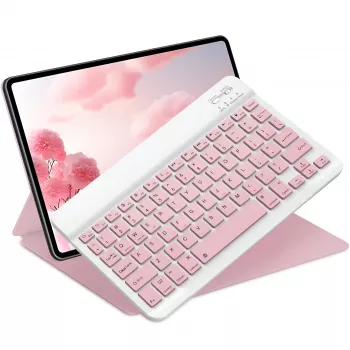
Wireless Bluetooth Keyboard for iPad, Tablet & Smartphone: Compact Typing That Travels Well
A compact Bluetooth keyboard can turn a tablet or phone into a faster, more comfortable setup for notes, emails, schoolwork, and travel. With a small footprint and rechargeable power, it’s an easy upgrade for anyone who types more than a few lines at a time on glass. Below is a practical guide to who benefits most, what day-to-day use feels like, and how pairing typically works across iPadOS, Android, Windows, and macOS.
Who a Compact Bluetooth Keyboard Fits Best
- Students and commuters who need a lightweight typing option for backpacks and small bags
- iPad and tablet users who want quicker typing than an on-screen keyboard for docs and messages
- Smartphone users who write long texts, captions, or email replies and want better ergonomics
- Remote workers who need a portable backup keyboard for meetings, hotel desks, or shared spaces
- Anyone looking to reduce thumb-typing fatigue during long writing sessions
What to Expect From a Rechargeable Keyboard
- Rechargeable power avoids frequent battery swaps and is convenient for daily use.
- A compact layout saves space but may use function-layer shortcuts for media keys or navigation.
- Bluetooth connectivity is designed for cable-free typing and quick device switching (depending on model).
- Quiet, low-travel keys are often preferred in classrooms, offices, and late-night use.
- A stable surface improves typing accuracy; on laps, a firm tray or case helps.
For most people, the biggest “upgrade” isn’t raw speed—it’s fewer interruptions. When you’re not constantly correcting autocorrect, hunting for punctuation, or blocking your screen with your hands, short tasks finish faster and longer tasks feel less tiring.
Compatibility and Pairing Basics (iPadOS, Android, Windows, macOS)
Most wireless keyboards use the Bluetooth HID profile, which is widely supported across modern phones, tablets, and computers (the Bluetooth standards body maintains the core specification here). Pairing is usually quick, but the exact menu labels vary by platform.
General pairing flow
- Charge the keyboard if it’s new or hasn’t been used recently.
- Turn it on and place it into pairing mode (often a dedicated button or a key combo).
- Open your device’s Bluetooth settings and look for the keyboard name.
- Select it and confirm any on-screen prompt or code entry, if shown.
iPad and iPhone (iPadOS/iOS)
- Go to Settings → Bluetooth.
- Select the keyboard when it appears.
- Follow any pairing code prompt on-screen.
Apple’s guidance for using external keyboards with iPad is available via Apple Support.
Android phones and tablets
- Go to Settings → Connected devices (or Bluetooth).
- Choose Pair new device and select the keyboard.
- Confirm pairing requests if prompted.
Android’s official steps for connecting Bluetooth devices are covered at Android Help.
Windows and macOS
- Open Bluetooth settings and choose Add a new device.
- Select the keyboard and confirm the code if prompted.
If pairing fails
- Toggle Bluetooth off/on on the phone/tablet/computer.
- “Forget” the keyboard in Bluetooth settings, then retry from fresh pairing mode.
- Recharge the keyboard (low battery can cause flaky discovery or lag).
- Move away from crowded wireless areas (some offices and dorms are noisy for Bluetooth).
Quick Comparison: Typing Setups for Mobile Devices
Not every mobile typing setup fits every routine. If you switch devices often, travel light, or use both a phone and tablet, a standalone Bluetooth keyboard is usually the most flexible. If you mainly type on a single tablet and want screen protection, a keyboard case can be worth it.
Common mobile typing options
| Option |
Portability |
Best for |
Trade-offs |
| Compact Bluetooth keyboard |
High |
iPad, tablets, and smartphones across platforms |
May require a stand; compact keys can feel tighter |
| Keyboard case for tablets |
Medium |
Tablet-first workflows and lap typing |
Less flexible across devices; bulkier than a standalone keyboard |
| Laptop/2-in-1 |
Low–Medium |
Heavy typing, multitasking, desktop-like work |
Higher cost and weight; not as quick to pull out for short tasks |
Comfort Tips for Faster, More Accurate Typing
- Raise the screen: Use a stand or prop to lift your phone/tablet and reduce neck strain. Eye level is ideal when possible.
- Keep wrists neutral: Avoid bending wrists upward; rest palms lightly between bursts of typing rather than pressing down continuously.
- Give your hands time: If keys feel cramped at first, slow down for a few sessions and let muscle memory adapt.
- Lean on shortcuts: Enable and practice on-device keyboard shortcuts for copy/paste, search, and app switching to reduce tapping the screen.
- Phone sessions: Bring the screen closer and increase font size slightly to cut eye fatigue during longer drafting.
Charging, Battery Habits, and Travel Readiness
Everyday Use Ideas (Beyond Notes and Email)
Recommended In-Stock Picks
Wireless Bluetooth Keyboard – Compact & Rechargeable
FAQ
Will a Bluetooth keyboard work with both an iPad and an Android phone?
In many cases, yes—most Bluetooth keyboards use standard HID support that works across iPadOS and Android. You typically pair the keyboard to each device separately, and switching may require reconnecting unless the keyboard supports dedicated multi-device switching.
Why does the keyboard connect but not type correctly?
Common causes include an incorrect keyboard language/layout on the device, low keyboard battery, or a “stuck” Bluetooth pairing state. Recharge the keyboard, verify the input language settings, then forget the device in Bluetooth settings and pair again from fresh pairing mode.
How often does a rechargeable keyboard need charging?
It depends on how many hours you type, whether any power-hungry features are enabled, and how aggressively auto-sleep is used. A practical habit is to charge when you notice lag or after several days of regular use, especially before travel.
Recommended for you






Leave a comment